This menu is at the right of many screens with a person graphic. 
Click on the graphic and the user menu appears.
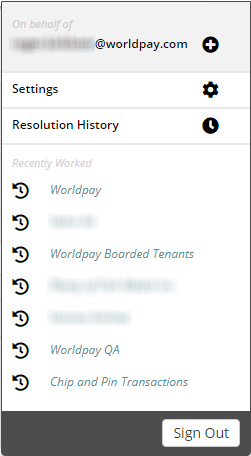
There are three areas:
Settings - Where you can do things like change your password
Resolution History - Where you can see transactions that you have worked on and resolved
Recently Worked - Quick links to work you've recently done
We describe these areas below:
Use this screen to change your password, add your phone number and set some preferences for the work you do. Fields marked with an asterisk (*) are mandatory.
When you've logged in for the first time you must change your password, as your first password is temporary and can only be used once.
To change your password:
Click person graphic, which is on the top right of the page. The User Menu screen appears.
Click Settings. The My Information (Update) screen appears.
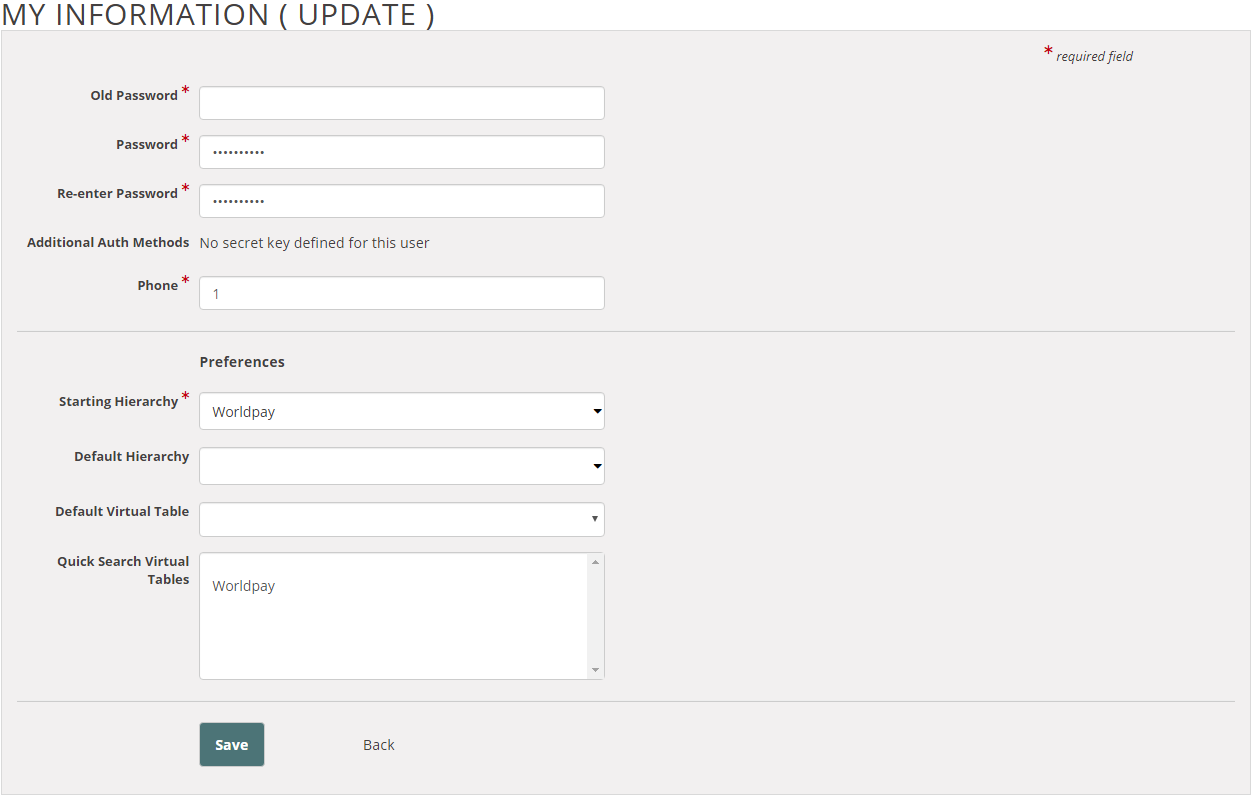
Complete the password fields on the page, mandatory fields have an asterisk (*) next to them.
The password must:
Begin with an alpha-numeric character
Contain a minimum of 8 characters
Contain at least 1 number
Contain 1 of the following special characters: @, #, or $
You cannot:
Change a password more than 8 times in 24 hours
Enter a password that contains spaces
Use the same password more than once
Enter your work telephone number in the Phone field.
The Title field is the only optional field; if you want you can leave this field blank.
Accept the default (Worldpay) setting in the Starting Hierarchy field, for more information, see the Preferences section below.
Click Save. The landing page appears and you can use the system.
This area of the screen is where you set your preferences about how you work with the system. The fields are:
Starting Hierarchy - Always select Worldpay from the drop down list. This is the only mandatory field.
Default Hierarchy - Choose the hierarchy you use the most from the drop-down list, or leave this field blank.
Default Virtual Table - Choose the default table you want from the drop-down list or leave this field blank.
Quick Search Virtual Tables - Choose the tables you want the system to search when you make a quick search. You can leave this field blank.
When you've made your preferences, click Save.
This option shows all the transactions you have recently resolved.
The transactions are listed by name and show the resolved time in a separate column.
| Guide feedback?
Email us at: guides@worldpay.com |
   
|
|
© Worldpay 2019, LLC and/or its affiliates. All rights reserved. |
